Account Setup
Complete your account configuration for optimal security monitoring.
Account registration is not yet available. This page previews the setup experience you'll have when CastellanAI launches.
Initial Account Configuration
Step 1: Verify Your Email
Confirm your email address to activate your account and receive important notifications.
- Check your inbox for the verification email from CastellanAI
- Click the "Verify Email" button in the email
- You'll be redirected to the portal with confirmation
Check your spam folder or request a new verification email from your profile settings.
Step 2: Complete Your Profile
Add essential account information for better collaboration and support:
| Field | Description | Required |
|---|---|---|
| Email Address | Your login email | ✅ |
| First Name | Your first name | ✅ |
| Last Name | Your last name | ✅ |
| Company Name | Your company or organization | ✅ |
| Job Role | Security Analyst, CISO, IT Manager, etc. | Optional |
| Time Zone | For accurate event timestamps | ✅ |
| Contact Phone | For critical alerts and support escalation | Optional |
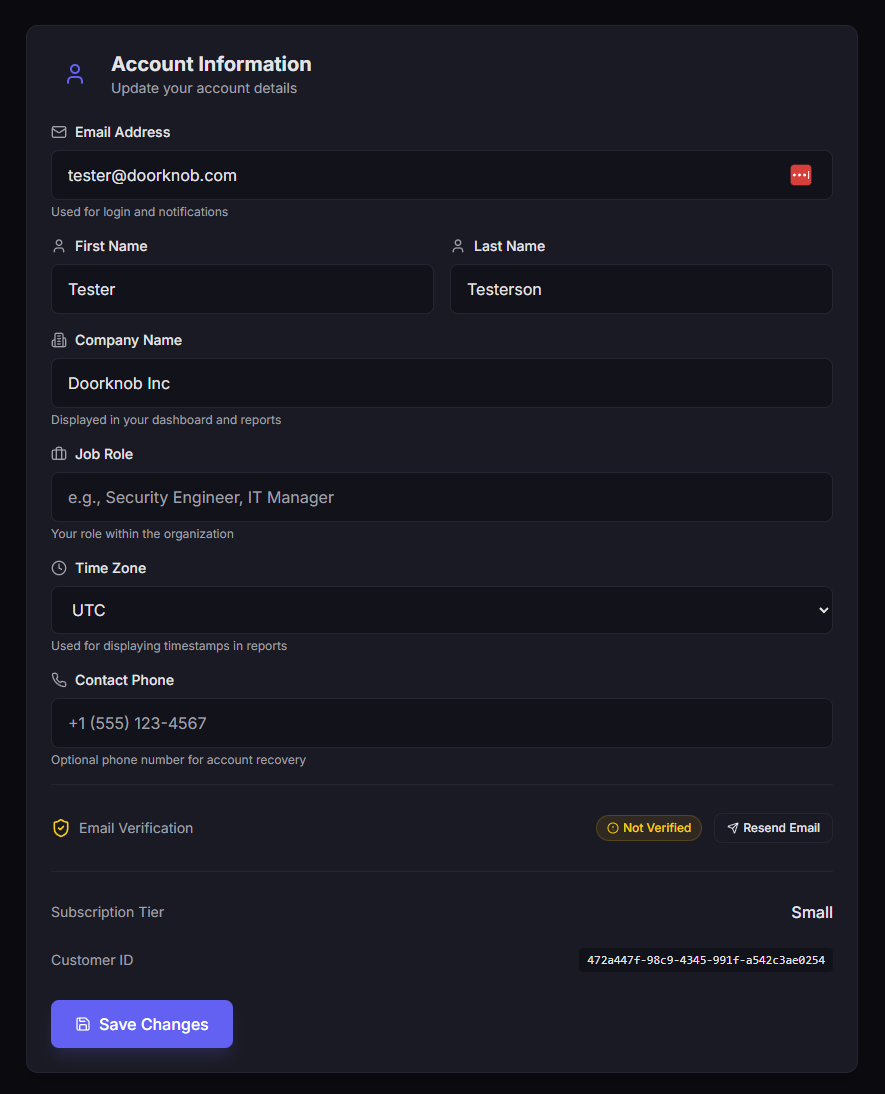 The Profile Settings page where you can update your account information.
Step 3: Enable Multi-Factor Authentication
Secure your account with two-factor authentication for enhanced protection.
MFA is required for admins and strongly recommended for all users.
- Authenticator App
- SMS
Recommended method - Most secure option
- Navigate to Profile → Multi-Factor Authentication → Enable MFA
- Select Authenticator App
- Scan the QR code with your authenticator app (Google Authenticator, Authy, 1Password)
- Enter the 6-digit code to verify
- Save your backup codes in a secure location
Convenient option - Good for most users
- Navigate to Profile → Multi-Factor Authentication → Enable MFA
- Select SMS
- Enter your phone number
- Enter the verification code sent via text
- Save your backup codes in a secure location
Basic option - Easiest to set up
- Navigate to Profile → Multi-Factor Authentication → Enable MFA
- Select Email
- A code will be sent to your registered email
- Enter the verification code
- Save your backup codes in a secure location
 The Multi-Factor Authentication setup wizard showing authentication method options.
🔑 About Backup Codes
Backup codes are one-time use codes that let you access your account if you lose access to your MFA device.
- Store them securely - Password manager, printed in a safe location
- Each code can only be used once
- Generate new codes if you run out or suspect compromise
- Don't share them - Treat them like passwords
Step 4: Deploy Your First Agent
Install the CastellanAI agent on your first endpoint to start collecting security events.
- Windows
- Linux
- macOS
For Windows Server & Desktop
# Download and run the installer as Administrator
.\CastellanAgent-Setup.exe
For Ubuntu, RHEL, CentOS, Debian
# Debian/Ubuntu
sudo dpkg -i castellan-agent.deb

# RHEL/CentOS
sudo rpm -i castellan-agent.rpm
For Intel & Apple Silicon Macs
sudo installer -pkg CastellanAgent.pkg -target /
Account Settings Overview
Access and manage all account settings from Profile in the Customer Portal:
| Section | What You Can Do |
|---|---|
| Profile Information | Update name, email, job role, organization details |
| Security Settings | Manage password, MFA, and account security |
| Billing & Subscription | View plan details, usage, manage payment methods |
Account Security Best Practices
Follow these guidelines to keep your account secure.
🔐 Use a Strong, Unique Password
- Minimum 12 characters
- Mix of uppercase, lowercase, numbers, and symbols
- Never reuse passwords across services
- Use a password manager
🛡️ Enable MFA Immediately
Two-factor authentication is your best defense against account compromise.
- Use an authenticator app over SMS when possible
- Store backup codes securely
- Never share MFA codes
👁️ Review Login Activity Regularly
Check Settings → Security → Login Activity for:
- Unfamiliar IP addresses
- Logins from unexpected locations
- Multiple failed login attempts
📞 Keep Contact Information Updated
Ensure we can reach you for:
- Critical security notifications
- Support escalation
- Account recovery
🔄 Rotate API Keys Periodically
- Regenerate API keys every 90 days
- Immediately regenerate if you suspect compromise
- Never commit API keys to source control
What's Next?
| Guide | Description |
|---|---|
| Security Score | Understand and improve your security score |
| Invite Your Team | Add team members to collaborate |
| Dashboard Tour | Learn about your security dashboard |
Need Help with Setup?
Our support team is here to assist with account configuration and onboarding.
Contact Support for personalized assistance.