Customer Portal Tour
Explore your CastellanAI Customer Portal for account and agent management.
Portal Overview
The Customer Portal at castellanai.com/portal is your central hub for managing your CastellanAI account, agents, and subscription.
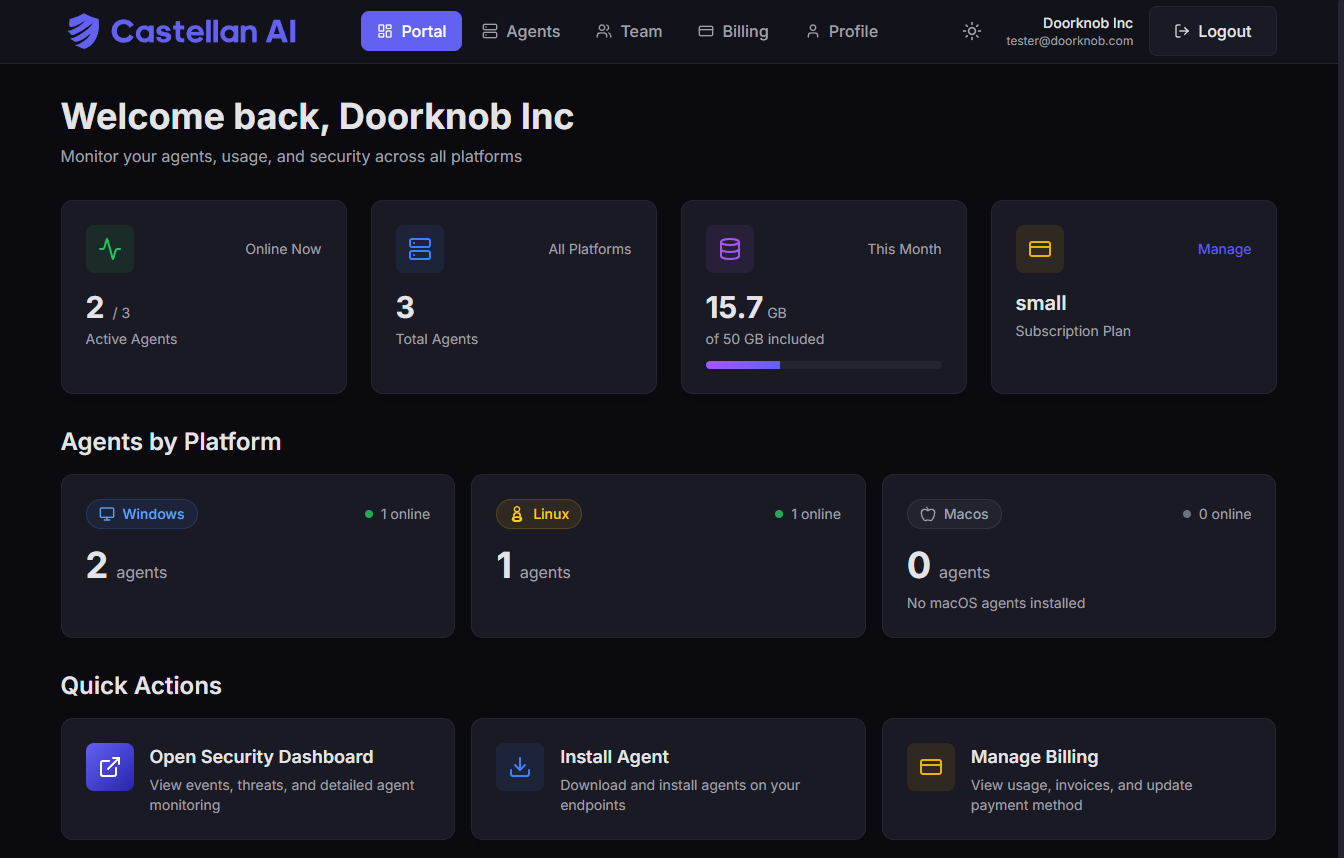 The Customer Portal home page showing quick actions and account summary.
Remember: The Customer Portal is for account management. The Security Dashboard is for threat monitoring. Access the Dashboard by clicking "Open Security Dashboard" in Quick Actions.
Main Navigation
| Section | Description | Key Actions |
|---|---|---|
| Portal | Home page with quick actions | Install agents, open dashboard |
| Agents | View and manage deployed agents | Monitor status, enroll new |
| Billing | Subscription and usage metrics | View invoices, manage plan |
| Profile | Account settings and security | Update info, enable MFA |
Portal Home
The home page provides quick actions and an overview of your account status.
Quick Actions
- 📥 Install Agent
- 🛡️ Open Dashboard
- 📊 View Usage
- 💳 Manage Subscription
Download agent installers for Windows, Linux, or macOS
- Click Install Agent
- Select your platform
- Follow the installation wizard
Launch the Security Dashboard to view threats and events
- Opens in a new tab
- Automatic SSO authentication
- Bookmark for direct access
Check your current billing period usage and costs
- Data transferred (GB)
- AI events processed
- Estimated monthly cost
Upgrade, downgrade, or modify your plan
- Compare tier features
- View pricing
- Change billing cycle
Account Summary
At a glance, see your account status:
| Metric | Description |
|---|---|
| Active Agents | Number of agents currently connected |
| Subscription Tier | Your current plan (Small, Medium, Enterprise) |
| Billing Status | Next billing date and current period |
Agents Page
View all deployed agents and their connection status.
The Portal Agents page is for monitoring agent status and enrolling new devices. To configure, control, or edit agent settings, use the Security Dashboard.
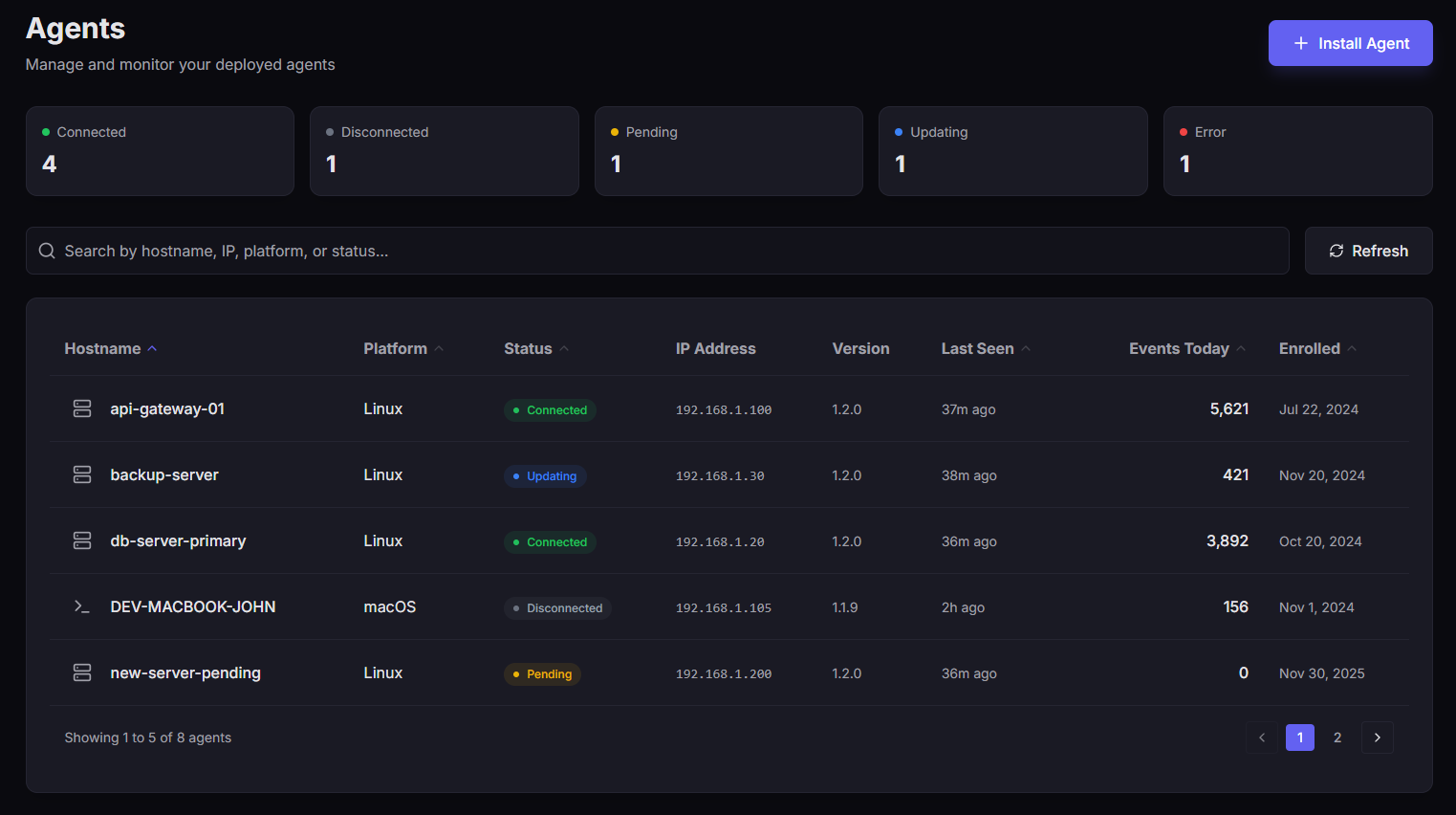 The Agents page showing all deployed agents with status indicators.
Agent Information
Each agent card displays:
| Field | Description |
|---|---|
| Machine Name | The hostname of the endpoint |
| Platform | Windows, Linux, or macOS |
| Status | Online (green) or Offline (red) |
| Last Heartbeat | When the agent last checked in |
| Connected Since | Initial connection timestamp |
Agent Status Indicators
| Status | Indicator | Description |
|---|---|---|
| Online | 🟢 Green | Agent connected and sending events |
| Offline | 🔴 Red | No connection in last 5 minutes |
💡 What to do if an agent is offline
- Check the endpoint - Is the machine powered on and connected to the network?
- Verify the service - Is the CastellanAgent service running?
- Check firewall rules - Can the endpoint reach
api.castellanai.com:443? - Review agent logs - Check for error messages
Installing New Agents
Click Install Agent to access the deployment wizard:
- Select your platform (Windows, Linux, macOS)
- Download the installer package
- Run the installer with your Customer ID and Hub URL
- The agent will appear in your list once connected
View detailed installation guides →
Billing Page
Manage your subscription and view usage metrics.
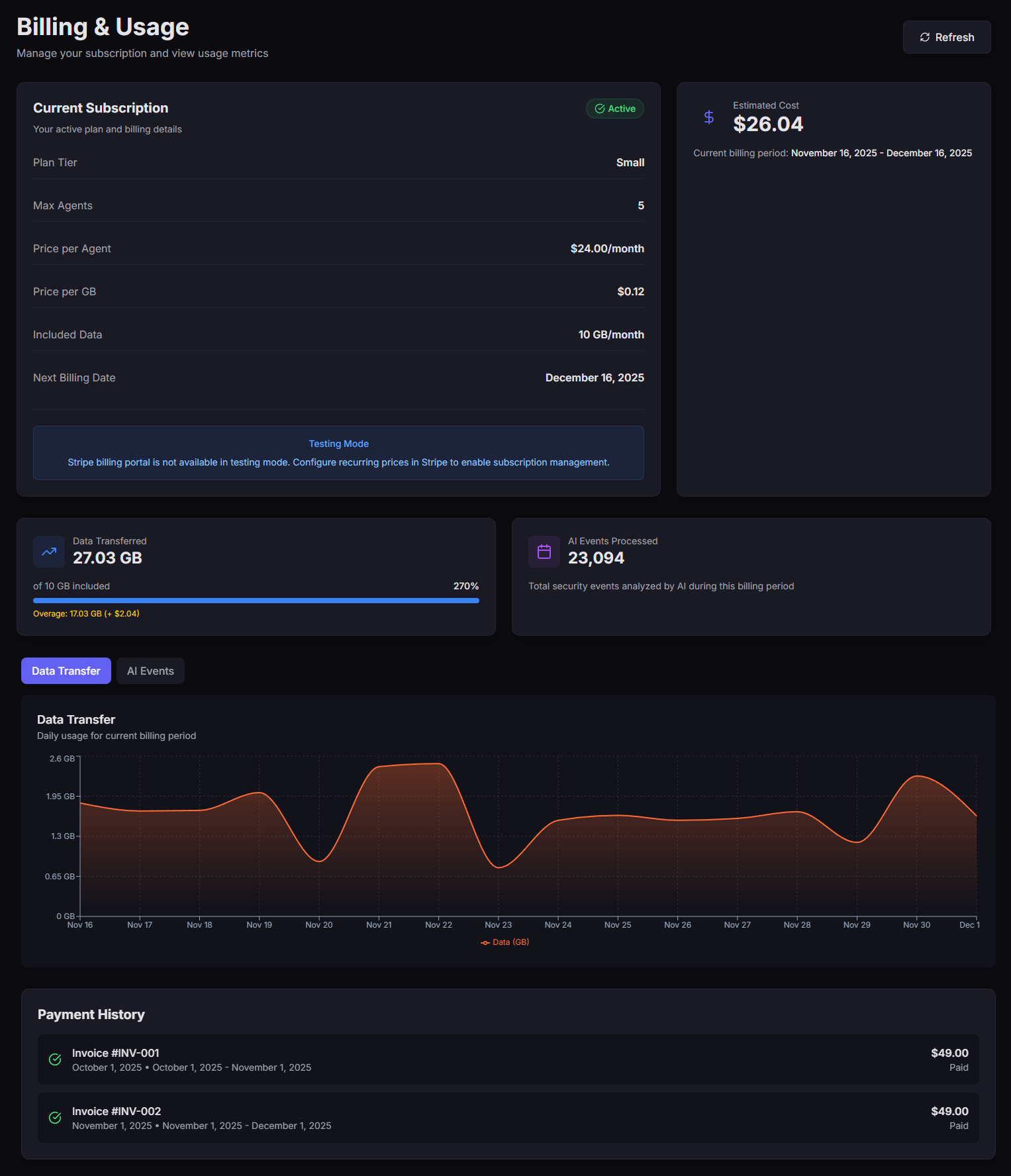 The Billing page showing subscription details and usage metrics.
Subscription Details
- 📋 Plan Info
- 📈 Usage Metrics
- 🧾 Invoices
| Field | Description |
|---|---|
| Plan Tier | Small Business, Medium Business, or Enterprise |
| Status | Active, Trial, or Past Due |
| Billing Period | Current cycle dates |
| Included Agents | Number of agents in your plan |
| Additional Agent Cost | Per-agent overage pricing |
Track your consumption for the current billing period:
| Metric | Description |
|---|---|
| Data Transferred | GB of security event data processed |
| AI Events | Number of AI-analyzed events |
| Estimated Cost | Projected bill based on current usage |
Set up billing alerts to avoid unexpected overages.
Access past invoices with:
- Invoice number and date
- Amount and payment status
- Download PDF option
Profile Page
Manage your account settings and security.
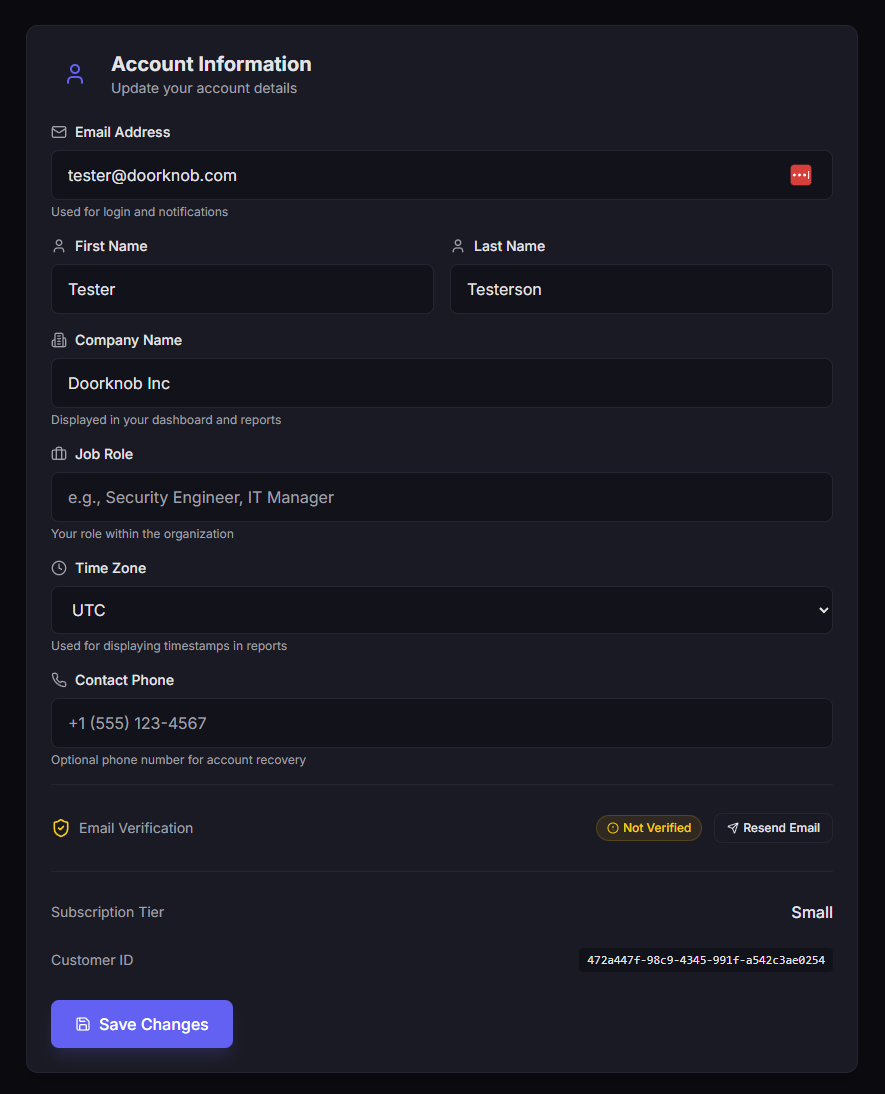 The Profile page showing account information and security settings.
Account Information
Update your profile details:
| Field | Purpose |
|---|---|
| Email Address | Your login email |
| First Name | Display name |
| Last Name | Display name |
| Company Name | Organization name |
| Job Role | For support context |
| Time Zone | Event timestamps |
| Contact Phone | Critical alerts (optional) |
Security Settings
🔐 Multi-Factor Authentication (MFA)
Protect your account with two-factor authentication:
- Click Enable MFA
- Choose method: Authenticator App, SMS, or Email
- Complete verification
- Save backup codes securely
🔑 Password Management
Change your password with current password verification.
Requirements:
- Minimum 8 characters
- Mix of uppercase, lowercase, numbers, and symbols
Use a unique password not used on any other service.
Accessing the Security Dashboard
The Security Dashboard is a separate interface for monitoring threats and security events.
How to Access
- Click Open Security Dashboard on the Portal home page
- You'll be automatically authenticated via Single Sign-On (SSO)
- The Security Dashboard opens in a new tab
The Security Dashboard has its own URL unique to your account. You can bookmark it for direct access, or always access it via the Customer Portal.
What's Next?
| Guide | Description |
|---|---|
| Security Score | Understand and improve your security posture |
| Invite Your Team | Add team members to your account |
| Security Dashboard Overview | Learn about threat monitoring features |
Need Help?
Questions about the Customer Portal? Our support team is here to assist.
Contact Support for assistance.